Skyline Dashboard Overview
Getting Started with the Skyline Interface
This guide covers the basics of navigating the Skyline interface, managing your resources, and accessing API credentials.
Logging In
To access the console, navigate to the provided URL and follow the on-screen instructions.
- Username: You must enter your username in the following format: User#Domain (e.g., [email protected]#mycompany-domain).
- Password: Enter your assigned password.
The Home Dashboard
Once authenticated, you will land on the Home panel. This dashboard acts as your main hub, providing an immediate overview of your cloud environment.
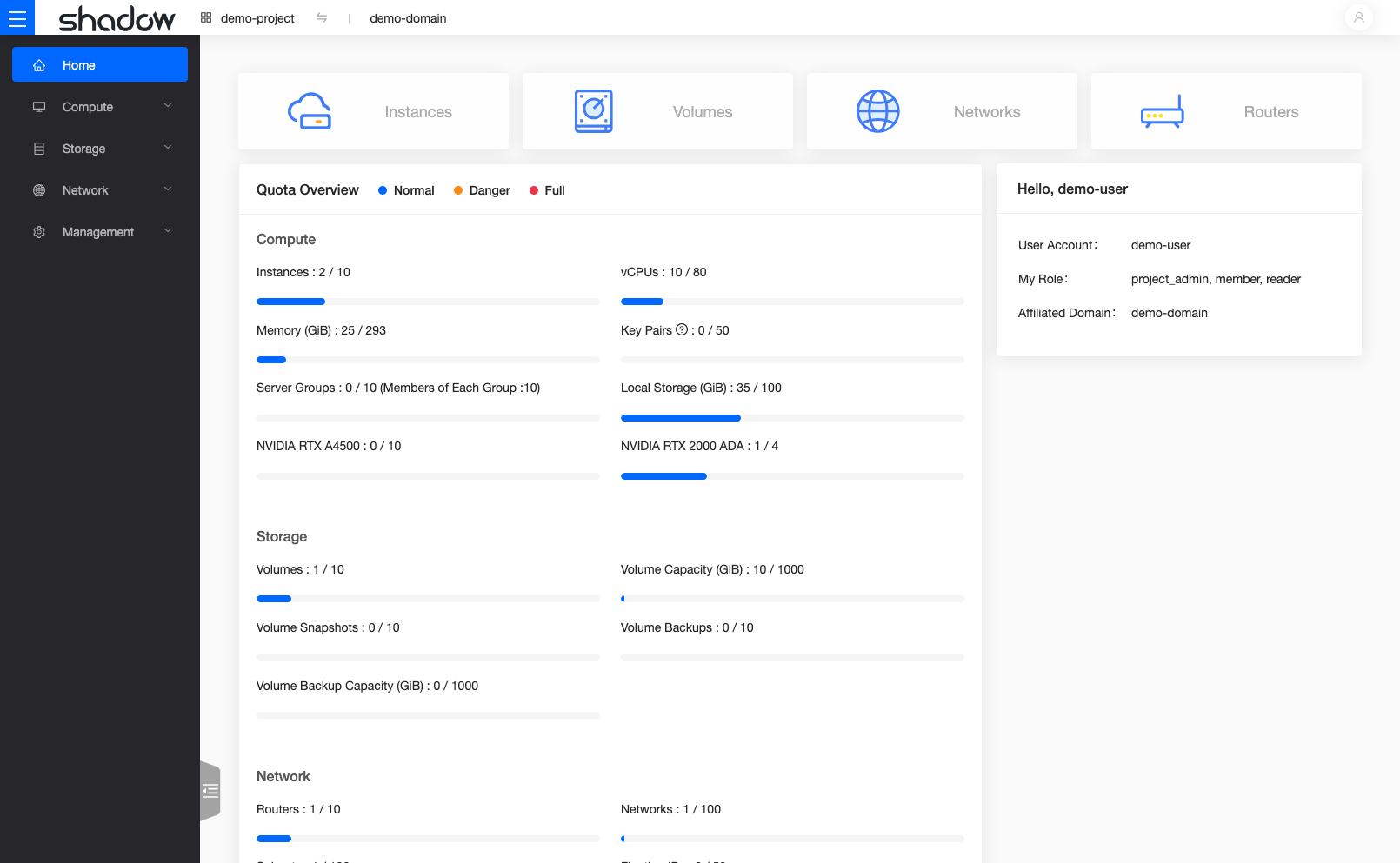
Skyline Home Dashboard
- Resource Usage: View current consumption of CPU, RAM, GPUs, Network and Storage.
- Quotas: Monitor your project limits to ensure you have sufficient capacity for new deployments.
Main Navigation (Left Panel)
The sidebar on the left provides access to the core infrastructure categories:
- Compute: Manage Instances (VMs), Images, and Key Pairs.
- Storage: Manage Volumes (Block Storage) and Snapshots.
- Network: Configure Networks, Routers, Security Groups, Floating IPs and Load Balancers.
For Project Administrators
If you have Project Administration privileges, you will see an additional Management tab in this panel. This section allows you to:
User Settings & API Access
Located at the top right of the screen is the User Menu (indicated by the 👤 logo). Clicking this icon reveals several utility options:
- Language: Switch the interface language.
- User Center: Access advanced profile settings.
- API Access: Download configuration files to authenticate via the Command Line Interface (CLI) or Terraform:
- openrc.sh (Shell script)
- clouds.yaml (YAML configuration)
The User Center & Application Credentials
Clicking User Center in the top right menu redirects you to a dedicated profile management area.
Managing Application Credentials
This is the primary location for managing Application Credentials. Using Application Credentials is the recommended security practice for authenticating third-party applications or scripts, as it avoids sharing your primary password.
For detailed instructions on creating and managing these credentials, please refer to the Security Measures guide.
Returning to the Console
To leave the User Center and return to the main infrastructure dashboard, click the Console link located immediately to the left of the 👤 logo.